
~ digitalchk / docs / reviews-chk
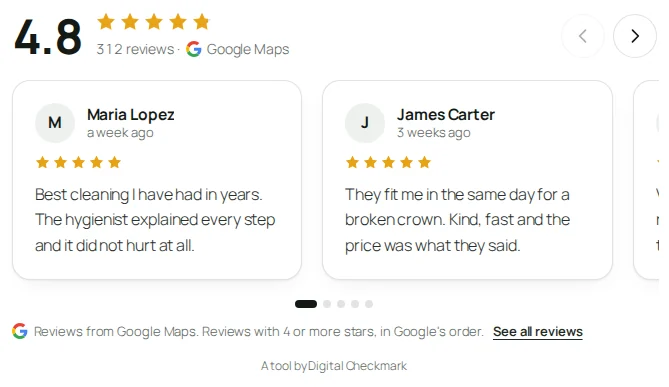
Reviews Chk shows your rating and your reviews on your WordPress site, from Google Maps or typed by you, as a carousel, grid, list or badge, in every language of the site. It is free, and it updates itself from Digital Checkmark like any plugin.
Download Reviews ChkFree. The latest version, as a zip for Plugins > Add New > Upload Plugin.
How it works
Two sources
Google Maps, automatic: your rating, your total and up to 5 reviews per language, chosen by Google and refreshed every day with your own Google API key. Or typed by you: you copy your best reviews from Google, Facebook or anywhere else, with no key and no cost.
Four layouts
a carousel, a grid, a list for sidebars and a badge with just the rating and the total. For light or dark backgrounds, with your star color and an optional rating summary on top.
It fits your site
it takes your theme’s font and adapts to the width it is given, not to the screen, so it looks right in a full-width section and in a narrow column.
Your numbers in any text
the rating and the total inside any Elementor heading, button or text, and in posts, even where shortcodes do not run.
Every language
Polylang and WPML. Google reviews come in the language of the page; each typed review can show in one language or in all.
What Google asks
next to Google reviews it shows Google Maps, which stars it shows and that they are in Google’s order, and each author with a link to their profile.
Requirements
- WordPress 6.4 or newer
- PHP 7.4 or newer
- For Google reviews: a Google Cloud API key with “Places API (New)” enabled. Google asks for billing on the project; one request per site language a day, plus your searches in the setup, stays inside the free monthly use for most sites. Typed reviews need nothing.
Setup
The setup lives in Reviews Chk > Setup: four steps and a live preview of the widget on the right. Each step is saved on its own: you can leave and come back, and change anything later from the same screen. While the setup is not finished, the Dashboard and the Plugins screen show “Finish setting up your reviews”, with “Continue” and “Remind me in 7 days”.
This is the quick path. Each step links to the section that explains its screen in full.
Install and activate Required
Download the zip with the button at the top of this page and upload it in Plugins > Add New > Upload Plugin, then activate it. If DC Reviews was installed, Reviews Chk imports its settings and turns it off (see Coming from DC Reviews).
Choose where the reviews come from Required
“Google Maps, automatic” or “Typed by you”. See Source.
Connect Google or type your reviews Required
With Google: the API key and your business. Typed: your numbers and your reviews. See Connect Google and Your reviews.
Choose the look Recommended
Layout, background, star color, how many reviews and the rating summary. See Look.
Put it on your site Required
The Elementor widget, the block or the shortcode, on as many pages as you like. See On your site.
Source
The first step of Reviews Chk > Setup chooses where the reviews come from. Both look the same on your site, and you can switch later: nothing is lost.
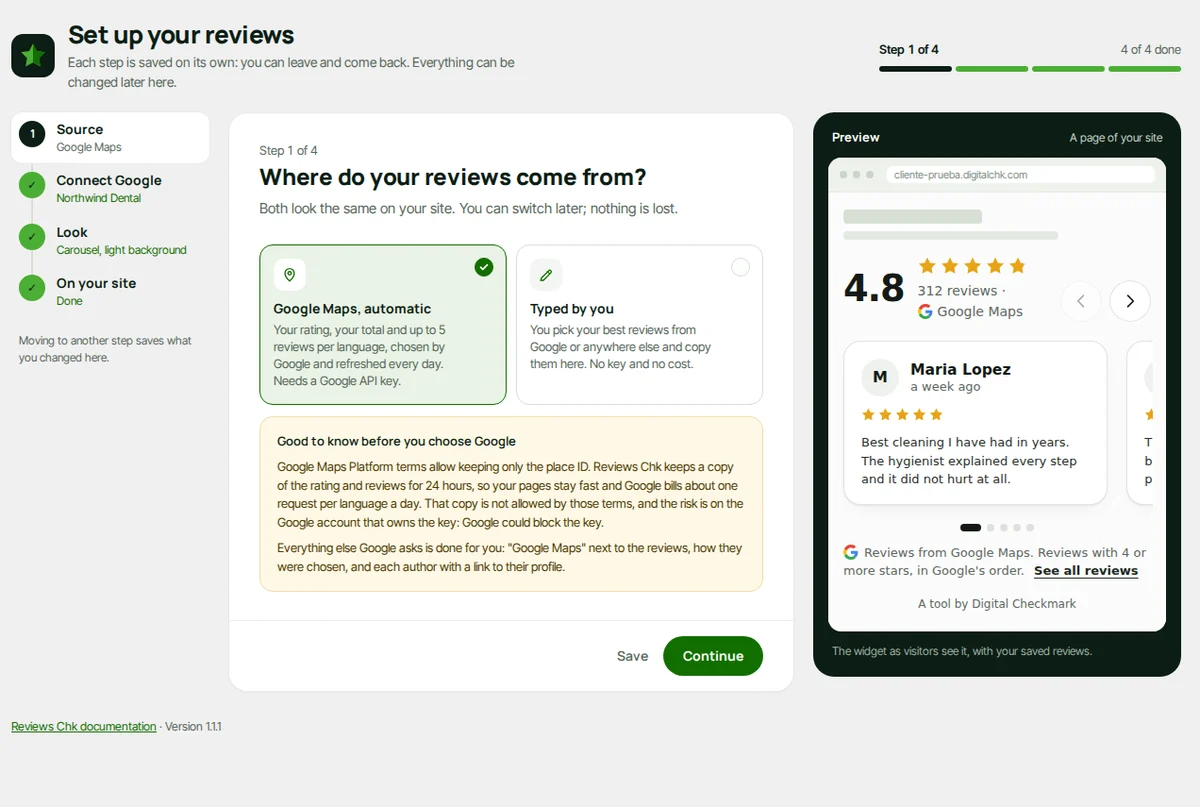
- “Google Maps, automatic”: your rating, your total and up to 5 reviews per language, chosen by Google and refreshed every day. It needs a Google API key. The note under it explains the one thing to know before choosing Google: the 24-hour copy (see Google Maps terms).
- “Typed by you”: you pick your best reviews from Google or anywhere else and copy them in. No key, no cost, and nothing is asked to anyone.
Press “Continue” to save and go to the next step, or “Save” to stay.
Connect Google
With Google as the source, step 2 asks for two things: a Google API key and your business on Google Maps. The key stays on your server; visitors never see it.
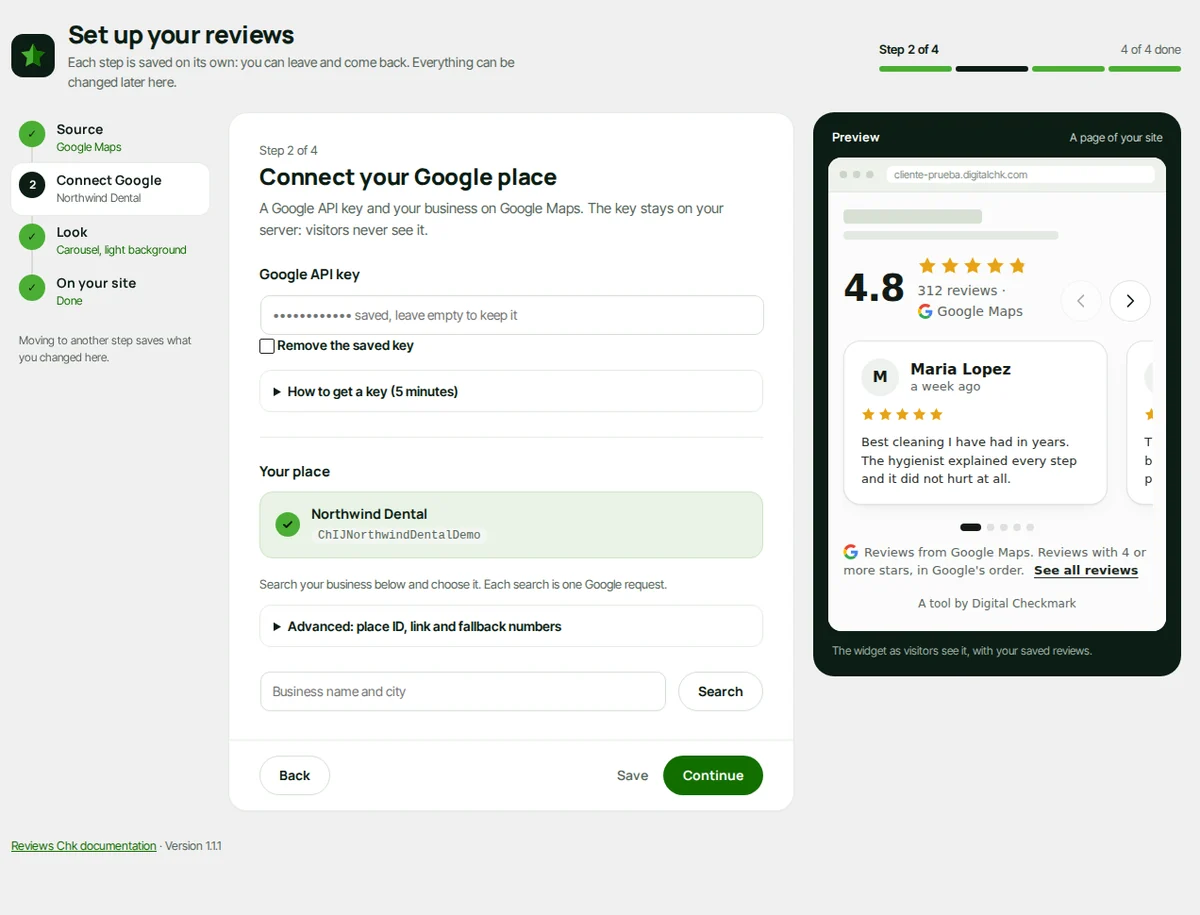
Get a key Required
“How to get a key (5 minutes)” opens the same steps:
- In Google Cloud console, create a project and turn on billing. Google asks for it even inside the free monthly use.
- In APIs and services > Library, enable “Places API (New)”. The older “Places API” does not work.
- In Credentials, create an API key. Restrict it to “Places API (New)” and to your server’s IP address.
- Paste it in “Google API key” and press “Save”.
Safer: put it in wp-config.php as define( 'REVIEWS_CHK_API_KEY', '...' );, so the key is not stored in the database. The screen then says “The key is set in wp-config.php”. A saved key is never shown again: the field shows dots, leave it empty to keep it, or check “Remove the saved key”.
Choose your place Required
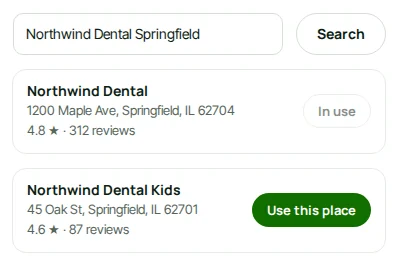
Under “Your place”, type your business name and city in “Business name and city” and press “Search”. Each search is one Google request. Press “Use this place” next to your business: Reviews Chk saves it and fetches your reviews for every site language at once. The place in use shows “In use”.
Advanced
“Advanced: place ID, link and fallback numbers” holds what the search fills in for you:
- “Place ID”: the Google identifier of the place.
- “Google Maps link”: used for “See all reviews” while Google has not answered yet.
- “Rating” and “Number of reviews”: the fallback numbers, shown when there is no fresh data from Google yet, or Google does not answer.
Your reviews
With “Typed by you” as the source, step 2 is “Your reviews”: your numbers and the reviews you want to show. Nothing is fetched from anywhere.
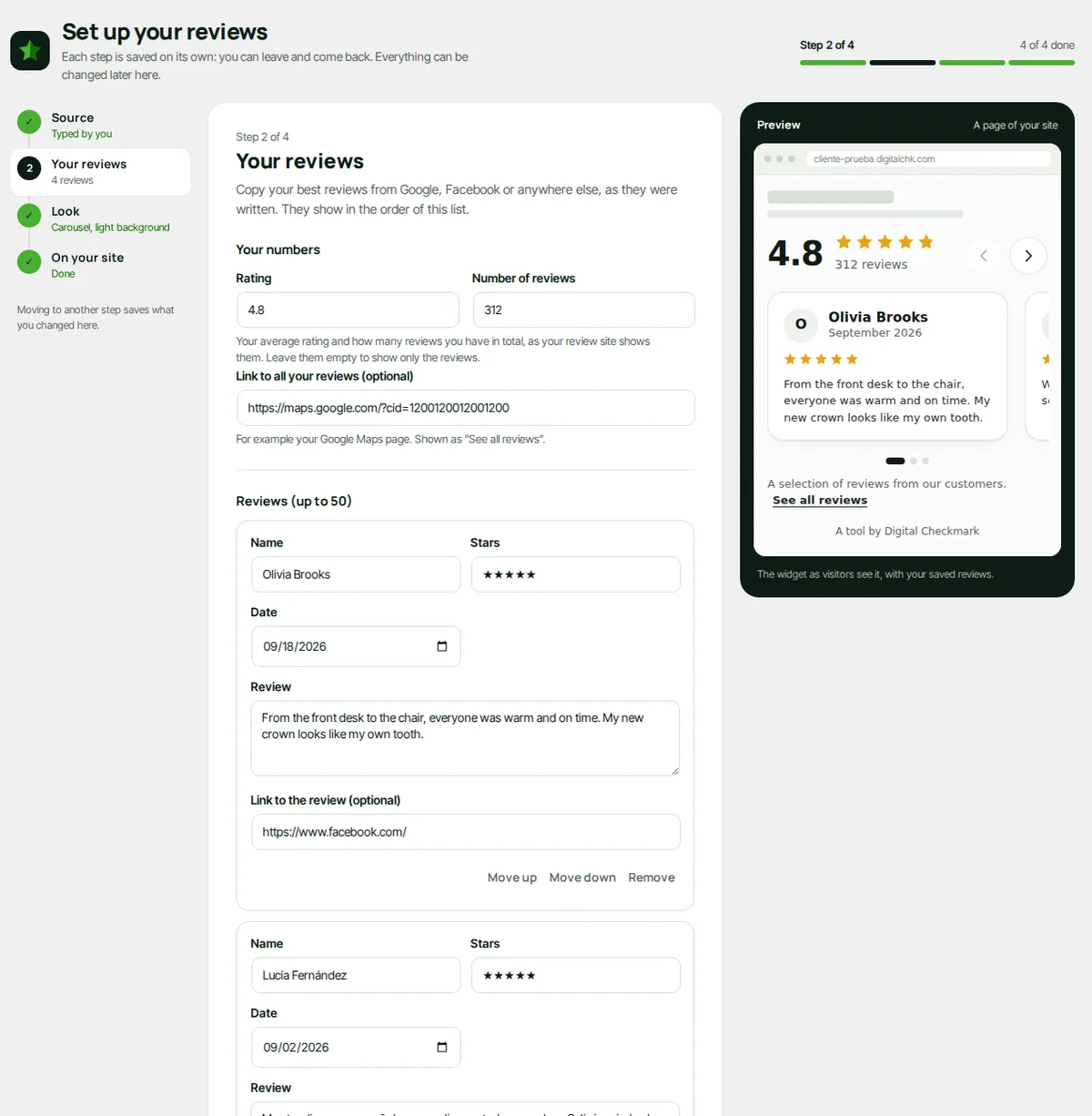
Your numbers
- “Rating” and “Number of reviews”: your average and your total, as your review site shows them. Leave them empty to show only the reviews, without the summary on top.
- “Link to all your reviews (optional)”: for example your Google Maps page. It shows as “See all reviews” under the widget.
The reviews
Press “Add a review” for each one, up to 50. Each card has:
- “Name”, “Stars”, “Date” and “Review”.
- “Show in”: “Every language”, or one language of the site (only when the site has more than one).
- “Link to the review (optional)”: the date links to it.
“Move up” and “Move down” change the order: the widget shows them in the order of this list. “Remove” asks for a second click before removing a card. Press “Save” or “Continue” to save the list.
Good practice
Copy each review as it was written, with the author’s name. Showing only your best ones is fine: the widget says it is a selection. Never make up reviews: in the United States the FTC fines fake reviews.
Look
Step 3 sets how the reviews look by default. The preview on the right follows each change before you save. The Elementor widget, the block and the shortcode can change any of these where you place them.
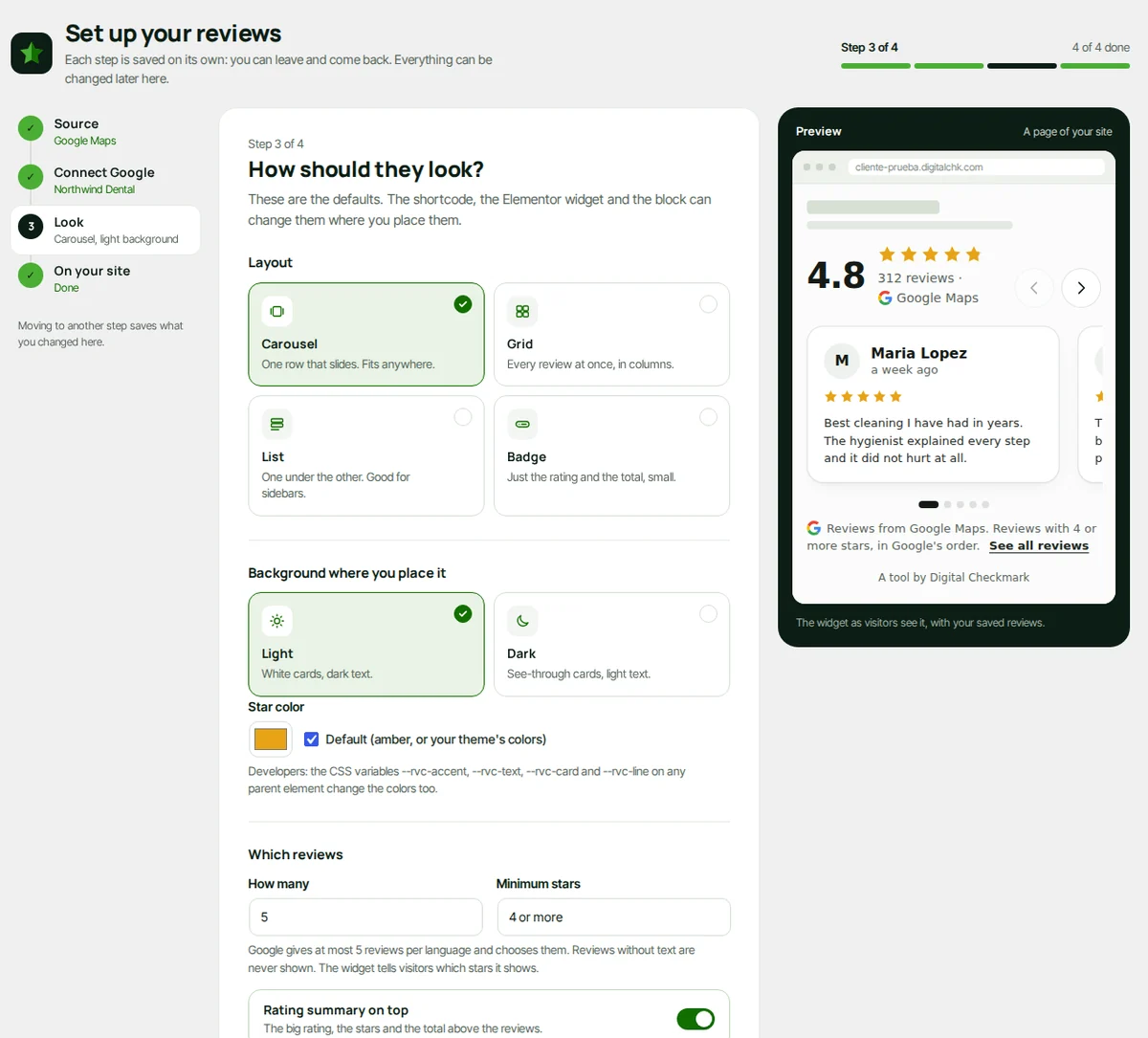
- “Layout”: “Carousel” (one row that slides; swipe, arrows and keyboard, no autoplay), “Grid” (every review at once, in columns), “List” (one under the other, for sidebars) or “Badge” (just the rating and the total, small).
- “Background where you place it”: “Light” or “Dark”. Choose the background of the section where the widget goes.
- “Star color”: the color picker, or the default (amber, or your theme’s colors).
- “How many”: up to 5 with Google (Google gives at most 5 per language), up to 20 with typed reviews.
- “Minimum stars”: reviews with fewer stars are not shown. With Google, the widget tells visitors which stars it shows.
- “Rating summary on top”: the big rating, the stars and the total above the reviews.
On your site
Step 4 lists every way to place the reviews. Use any of them, on as many pages as you like: they all show the same reviews. “Finish” marks the setup as done and opens Reviews Chk > Overview.
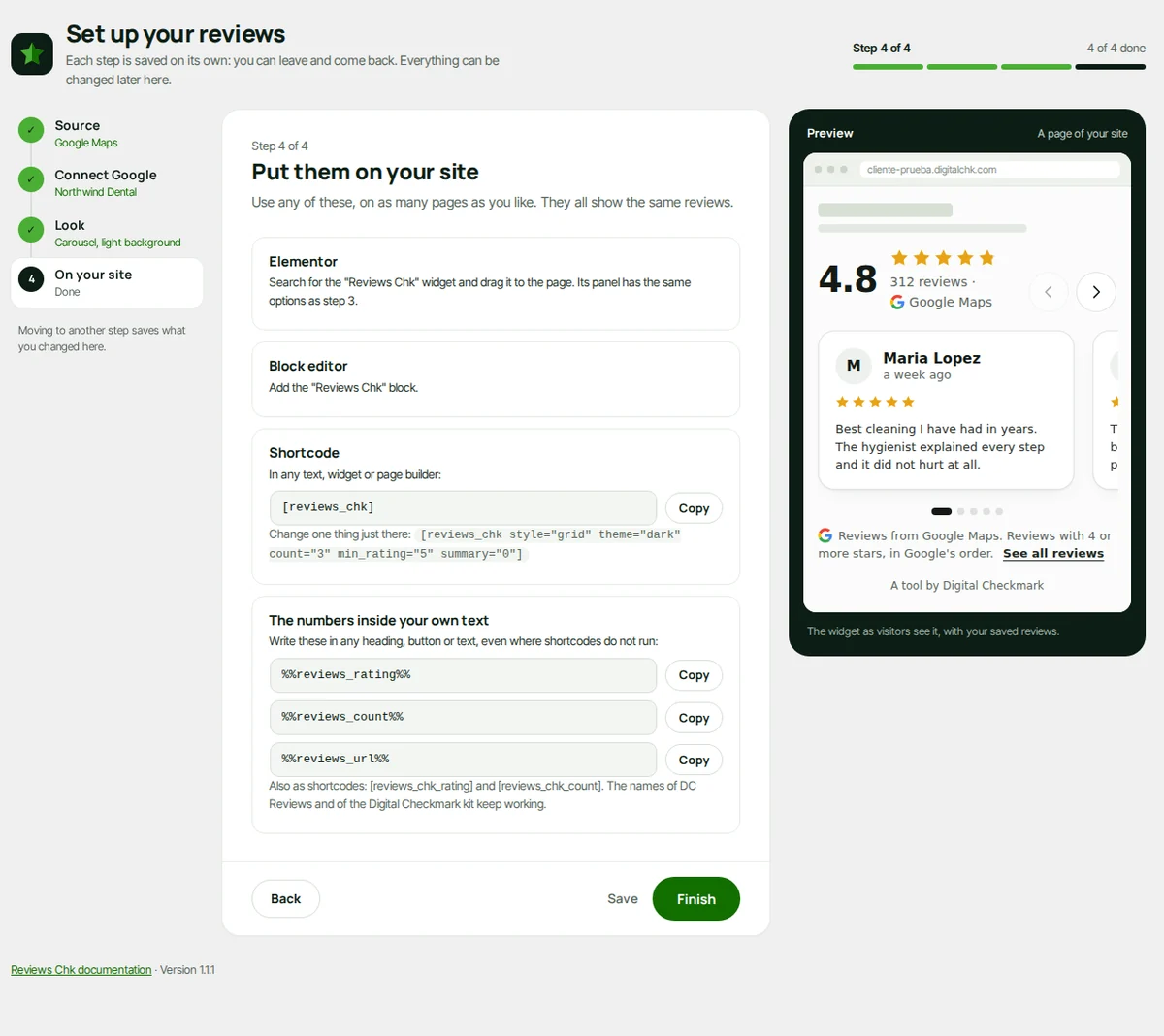
Elementor
Search for the “Reviews Chk” widget and drag it to the page. Its panel has the same options as the Look step.
Block editor
Add the “Reviews Chk” block. Its sidebar has the same options; “As in Reviews Chk > Setup” keeps the default.
Shortcode
[reviews_chk]the reviews, with the defaults of the Look step.[reviews_chk style="grid" theme="dark" count="3" min_rating="5" summary="0"]changes them just there.styleis carousel, grid, list or badge.[reviews_chk_rating]and[reviews_chk_count]the rating and the total.
The numbers inside your own text
Write %%reviews_rating%%, %%reviews_count%% or %%reviews_url%% in any Elementor heading, button or text, or in a post, even where shortcodes do not run. They always show the current numbers.

The layouts
The four layouts show the same reviews. Each one adapts to the width of the place where you put it, not to the screen.
Carousel
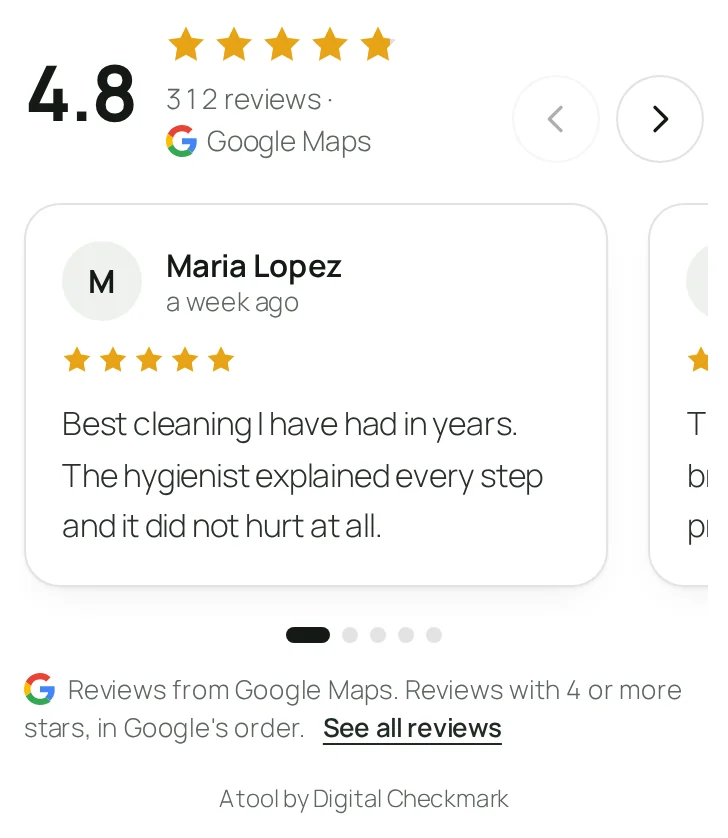
One row that slides, with arrows, dots and swipe. It shows as many cards as fit and never moves on its own. A long review shows its first lines and “Read more”, which opens the rest in place.
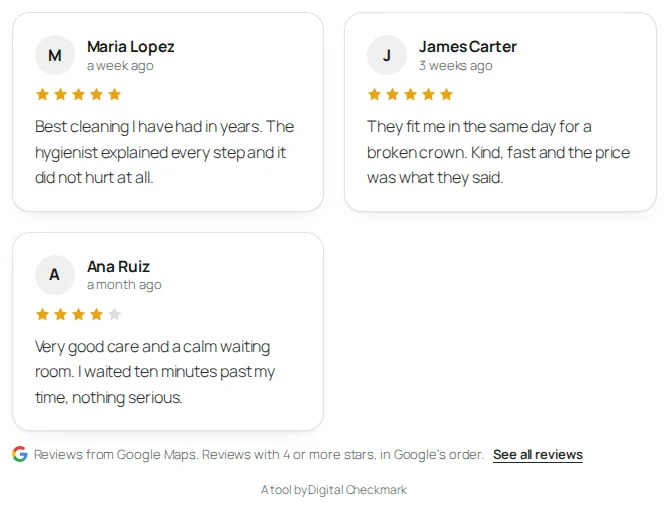
Grid
Every review at once, in columns. Here with three reviews and without the rating summary: [reviews_chk style="grid" count="3" summary="0"].
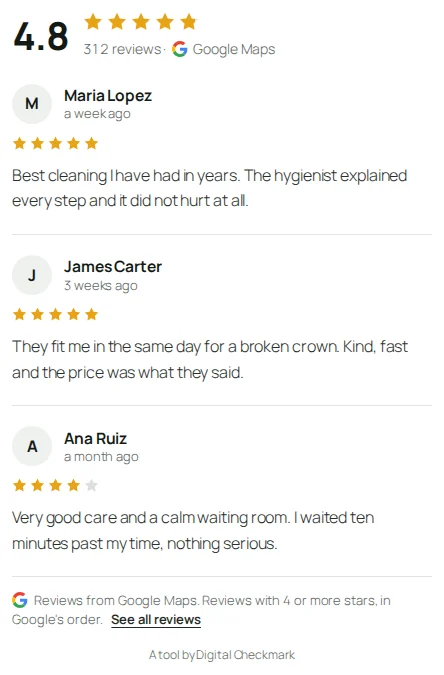
List
One under the other, for a sidebar or a narrow column.
Badge
Just the rating, the stars and the total, small. It links to all your reviews. Good for a header, a footer or next to a button.

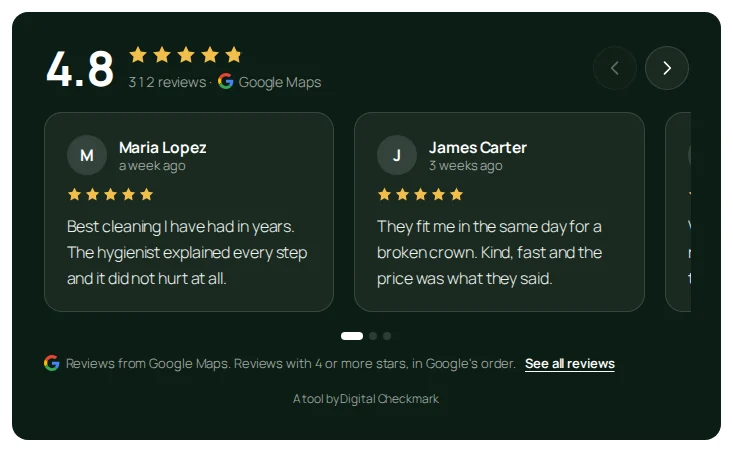
On a dark background
“Dark” in the Look step, or theme="dark" in the shortcode, for a dark section: see-through cards and light text.
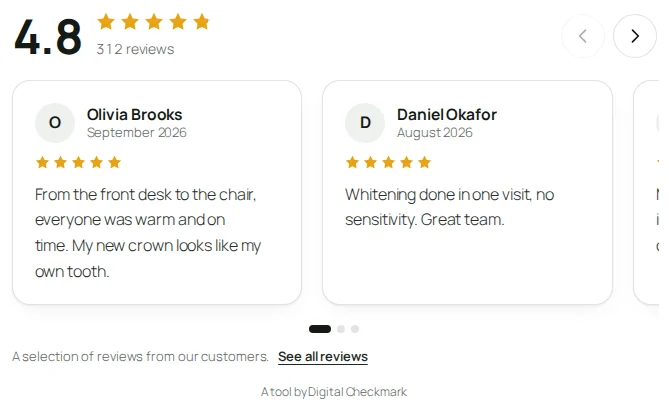
Typed reviews
Typed reviews look the same. Under them, the widget says “A selection of reviews from our customers.” instead of the Google line, and there is no Google Maps mark.
Overview
Reviews Chk > Overview shows what visitors see now and the state of the source, with the shortcut to each change.
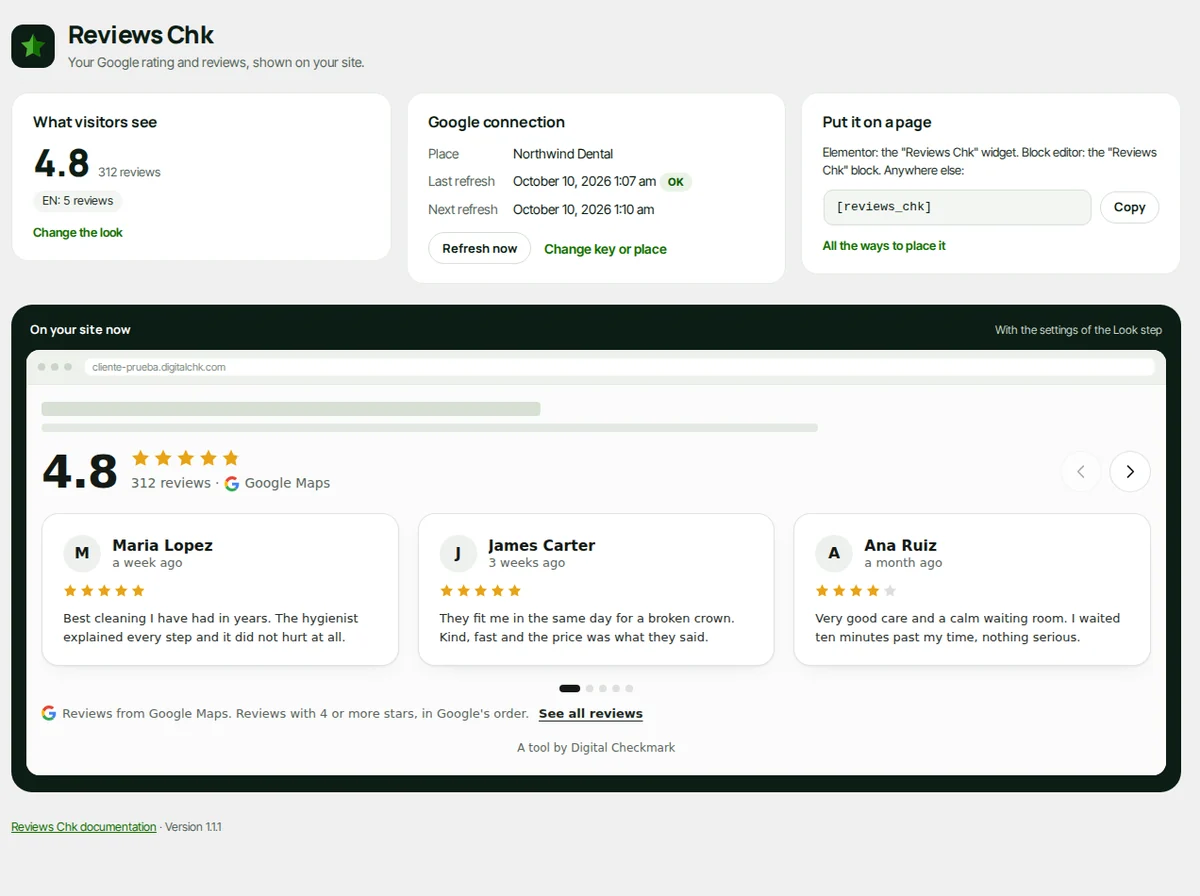
- “What visitors see”: the widget with your saved reviews, and “Change the look”.
- “Google connection”: the place, “Last refresh” (with “Failed” when it did not work) and “Next refresh”. “Refresh now” asks Google again at once, and “Change key or place” opens step 2. With typed reviews, this box is “Your reviews” with “Add or edit reviews”.
- “Put it on a page”: the shortcode, with “Copy”.
While the setup is not finished, this screen shows “Set up your reviews” and how many steps are done, with “Start” or “Continue”.
Debug Log
Reviews Chk > Debug Log says what Reviews Chk asked Google and what it got. Never the key. Start here when the reviews do not show.
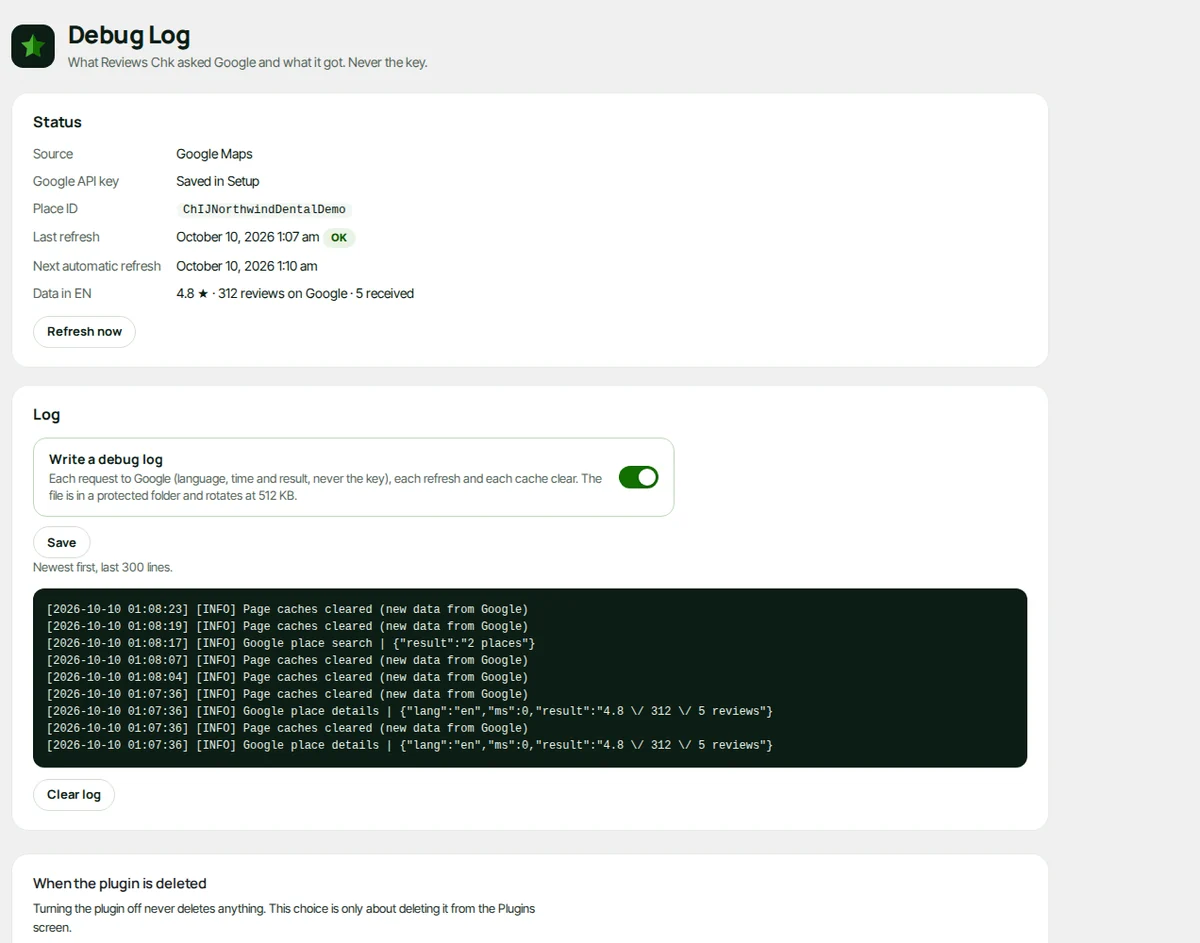
- “Status”: where the key is (“In wp-config.php”, “Saved in Setup” or “Missing”), the place, the last refresh and the “Next automatic refresh”.
- “Reviews”: for each language, what Google sent: the rating, the total and how many reviews were received. “None (the site shows the fallback numbers)” means there is no fresh copy for that language.
- “Log”: check “Write a debug log” and press “Save” to record each request to Google (language, time and result), each refresh and each cache clear. The file is in a protected folder and rotates at 512 KB. The screen shows the newest 300 lines first; “Clear log” empties it.
Turn the log off when you are done: it is not needed day to day.
Google Maps terms
What Google asks of anyone who shows its reviews, and what Reviews Chk does about each point.
| | Google asks | Reviews Chk | |
|---|---|
| |—|—| | |
| | Say the content comes from Google Maps | “Google Maps” next to the reviews, and “See all reviews” links to your place on Google Maps. | |
| | Say how the reviews were chosen | “Reviews with 4 or more stars, in Google’s order.” (or “All reviews with text”), under the reviews. | |
| | Show each author with a link to their profile | Each author shows with their name and photo, and the name links to their Google profile. | |
| | Keep the reviews in Google’s order and text | They are never reordered or edited. When Google translated one, the card says “Translated by Google”. | |
| | Keep only the place ID | Reviews Chk keeps a copy of the rating and the reviews for 24 hours. See below. | |
The 24-hour copy
Google Maps Platform terms allow keeping only the place ID. Reviews Chk keeps a copy of the rating and the reviews for 24 hours, in the WordPress cache and never in a permanent table, so your pages stay fast and Google bills about one request per language a day. That copy is not allowed by those terms. The risk is on the Google account that owns the key. If you do not want it, use typed reviews: nothing is fetched from anyone.
No stars in search results
Google does not allow review stars in search results for a business on its own site, so Reviews Chk adds no review schema.
Coming from DC Reviews
Reviews Chk replaces DC Reviews and the reviews part of the Digital Checkmark kit. Install it on top: nothing on your pages needs to change.
- The first time it runs, it copies the settings of DC Reviews (key, place, fallback numbers, how many, minimum stars and layout) and turns DC Reviews off. The setup counts as done if a place was chosen.
- Pages keep their look: the rating summary on top starts off on those sites.
- The old shortcodes (
[dc_reviews],[dc_reviews_rating],[dc_reviews_count]), the old Elementor widget, the “Google Reviews (DC Reviews)” block and the kit’s text tokens keep working.
When everything looks right, you can delete DC Reviews from the Plugins screen.
Updates and privacy
Updates
Reviews Chk is free and needs no license. Updates come from the Digital Checkmark server, signed, to Dashboard > Updates like any plugin, and the automatic updates of WordPress apply to it too. Twice a day the site asks for a new version and sends its address and the versions of the plugin, WordPress and PHP. Nothing about visitors.
What reaches Google
With Google as the source, your server asks Google for your place once a day per site language, with your key. Visitors’ browsers never talk to Google for the reviews, and the key never reaches the page. The authors’ photos load from Google’s servers.
Typed reviews
They stay in your database. Nothing is fetched and nothing is sent.
When the plugin is deleted
Turning the plugin off never deletes anything. Under Reviews Chk > About, “When the plugin is deleted” decides what happens when you delete it from the Plugins screen: with “Delete all its data too” off (default) the settings and your typed reviews stay; on, everything is removed for good.
Attribution
Under the reviews, the plugin shows the line “A tool by Digital Checkmark”, with a link to digitalchk.com. It is part of the plugin and has no setting.
For developers
Shortcode attributes
[reviews_chk] takes style (carousel, grid, list, badge), theme (light, dark), count, min_rating (0 to 5) and summary (1 or 0). Anything left out comes from the Look step.
Text tokens
%%reviews_rating%%, %%reviews_count%% and %%reviews_url%% are replaced in post content and in the output of Elementor widgets. The kit’s old names (%%resenas_nota%%, %%resenas_total%%, %%resenas_url%%) work too.
Colors
The CSS variables --rvc-accent, --rvc-text, --rvc-card and --rvc-line on any parent element change the colors of the widget inside it.
Filters
rvc_strings: the texts visitors see, per language. English and Spanish come built in; other languages show English until you add them.rvc_decimal_comma: the languages that write the rating with a comma (4,8).
Key in wp-config.php
define( 'REVIEWS_CHK_API_KEY', '...' ); takes priority over a key saved in Setup.
WordPress cache and page caches
The Google copy lives in transients (one per language, 24 hours); with Redis or Memcached it lives there. When new data arrives, Reviews Chk clears Elementor’s element cache and the page caches it knows (Cache Enabler, LiteSpeed Cache and others), so visitors see the new reviews.
If something does not work
Start with Reviews Chk > Debug Log: “Status” and “Reviews” say what Google answered, and the Overview says when the last refresh failed. If Google stops answering, administrators also see a warning on the Dashboard.
The widget shows nothing
With Google, the place is not chosen yet or Google has not answered: open Setup, step 2. With typed reviews, add at least one in step 2. A review without text is never shown, and neither is one under the “Minimum stars”.
“Google does not accept the API key”
The key is incomplete or was deleted in Google Cloud. Copy it again, whole, into “Google API key”.
“The key is not allowed to use Places API (New)”
In Google Cloud, enable “Places API (New)” for the project (the older “Places API” does not work) and check the key restrictions: the API and your server’s IP address. Your server’s IP is not always the IP of your site’s domain; your hosting can tell you which one it uses to go out.
“Google quota reached for this key”
The key reached a limit of its Google Cloud project. It is retried automatically; meanwhile the site shows the last good copy or your fallback numbers.
The rating shows but not the reviews
Google is not answering, so the site shows your fallback numbers until it answers again. The last good copy lasts 24 hours.
Old reviews or old numbers
A page cache keeps a copy of the page. Reviews Chk empties the caches it knows; empty any other one in its plugin, in your hosting panel or in Cloudflare.
“No places found. Try the name and the city.”
Search with the name as it shows on Google Maps and the city. If it is still missing, open your place on Google Maps and paste its place ID under “Advanced: place ID, link and fallback numbers”.
Getting help
The link at the foot of every Reviews Chk screen opens this guide, in your language.
Write to us through the support page. Under Reviews Chk > About, “Copy details for support” copies your versions and the state of the source (no key and no visitor data): paste it in your message, with the exact text of any error.